
Stream page actions
When you are streaming an application or a device, a sidebar on the right side of the stream page provides access to several controls and information panels.
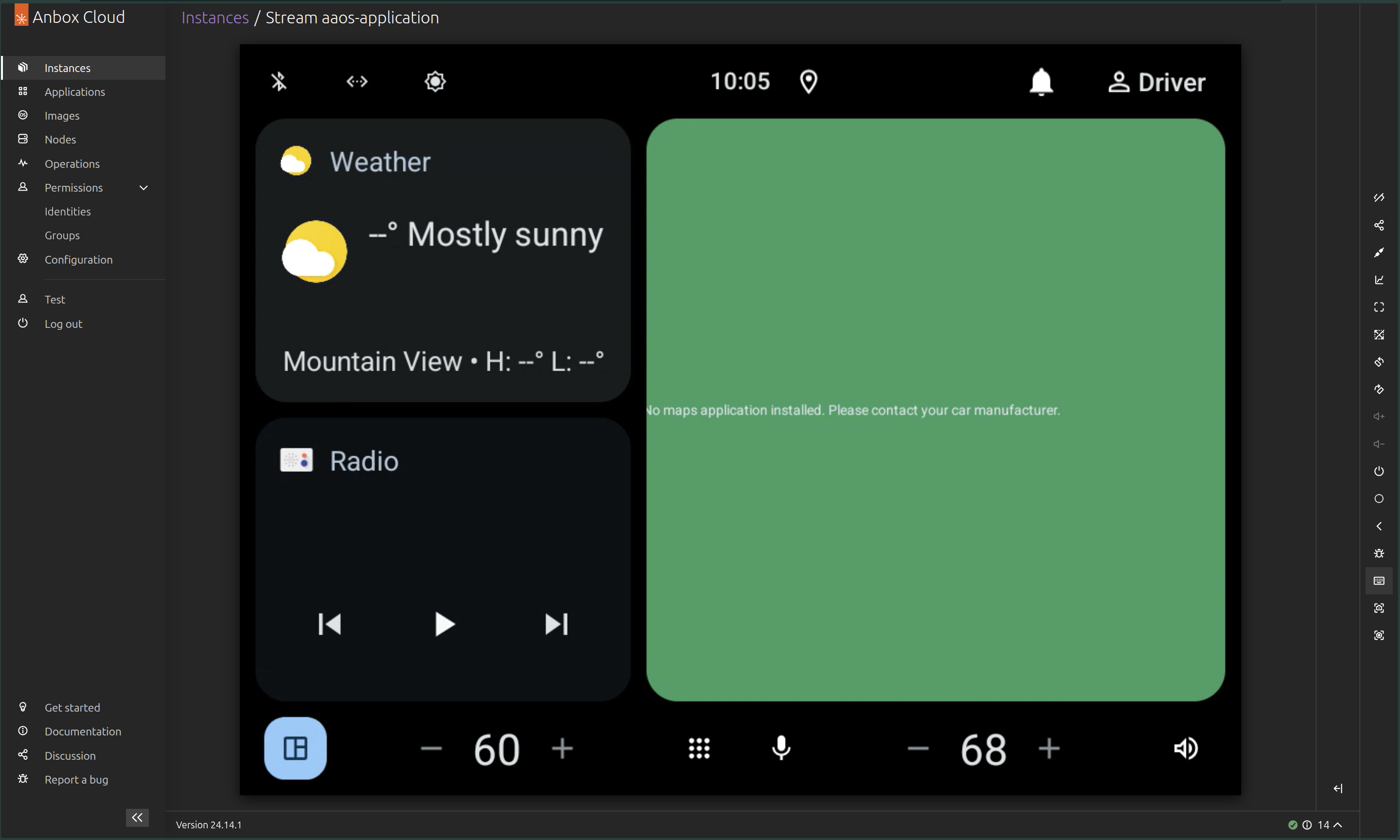
This sidebar contains the following actions:
Open developer tools

Shortcut: Ctrl + Shift + D
The Open developer tools action opens a panel with various tools for developers to interact with the streaming session, including a terminal and logs for the running instance.
Set up sharing

Shortcut: Ctrl + Shift + S
The Set up sharing action creates a temporary link to share your stream with another person, allowing them to take over the session from you. Note that simultaneous access is not allowed: when someone joins the stream, the currently connected user is disconnected.
Connect ADB

Shortcut: Ctrl + Shift + C
The Connect ADB action generates a pre-signed URL that can be used to connect to the Android Debug Bridge (ADB) for the running instance. It also provides instructions on how to use the URL. This allows developers to interact with the Android instance using ADB commands, which is useful for debugging and testing applications.
Show statistics

Shortcut: Ctrl + Shift + M
The Show statistics action opens a panel that displays real-time streaming statistics. This information is useful for monitoring the performance and quality of the stream and can help diagnose streaming issues.
Set location
Shortcut: Ctrl + Shift + G

The Set location action opens a panel where you can set the geographic location (GPS coordinates) for the virtual device. This is useful for testing applications that rely on location services.
When you set a location, the virtual device behaves as if it is physically present at those coordinates.
This action might be missing from the sidebar for AAOS applications. In this case, the location section can be opened from the “Controls” panel.
Full screen

Shortcut: Ctrl + Shift + F
The Full screen action toggles the streaming session between full-screen and windowed mode.
Enable / Disable stream resize

Shortcut: Ctrl + Shift + R
The Enable / Disable stream resize action allows you to toggle resize mode, which allows to resize the stream, or reset its size to fit the whole available space.
Rotate left

Shortcut: Ctrl + Shift + ArrowLeft
The Rotate left action rotates the stream to the left by 90 degrees.
Rotate right

Shortcut: Ctrl + Shift + ArrowRight
The Rotate right action rotates the stream to the right by 90 degrees.
Volume up

Shortcut: Ctrl + Shift + ArrowUp
The Volume up action increases the volume of the Android device, simulating a volume button press on a physical device.
Volume down

Shortcut: Ctrl + Shift + ArrowDown
The Volume down action decreases the volume of the Android device, simulating a volume button press on a physical device.
Power

Shortcut: Ctrl + Shift + P
The Power action turns the display of the Android device on or off, simulating a power button press on a physical device.
Home

Shortcut: Ctrl + Shift + H
The Home action simulates a home button press on a physical device.
Back

Shortcut: Ctrl + Shift + E
The Back action simulates a back button press on a physical device.
Download bug report

Shortcut: Ctrl + Shift + B
The Download bug report action provides a way to collect) information about a problem you encounter during a streaming session. When you initiate a bug report, the system collects relevant logs and session data that you can then send to developers to help them diagnose the issue.
Release / Capture keyboard

Shortcut: Ctrl + Shift + K
The Release / Capture keyboard action allows you to switch the capture of keyboard events by the Android device on and off. When the capture is off, the key events will be sent to the browser’s page.
Take a screenshot

Shortcut: Ctrl + Shift + I
The Take a screenshot action takes a screenshot of the Android device.
Start / Stop screen recording

Shortcut: Ctrl + Shift + O
The Start / Stop screen recording action starts recording a video of the streaming session. Clicking the button a second time stops the recording and saves the video to your local device. This is useful for creating demos, tutorials, or for troubleshooting.