
Harden your deployment
Anbox Cloud includes security controls for its components and inter-component communication. However, you must also configure and operate your deployment securely to reduce its exposure to attacks.
General guidelines
Consider the following simple yet impactful measures to ensure a secure Anbox Cloud deployment:
Always run the latest supported version of Anbox Cloud and keep your deployment up to date. See Release notes.
Make sure your deployment uses machines running a supported Ubuntu version. See Requirements.
Consider the host-level security measures, guidelines and benchmarks offered by Ubuntu Pro such as CIS, USG and Livepatch. For more information, see the Ubuntu Pro Client documentation for enabling CIS/USG and Livepatch.
If you discover a security vulnerability in Anbox Cloud, report it following the Anbox Cloud security policy. For Ubuntu-level security issues, contact the Ubuntu security team.
Reduce attack surface
The following diagram illustrates the attack surface and potential points of threat.
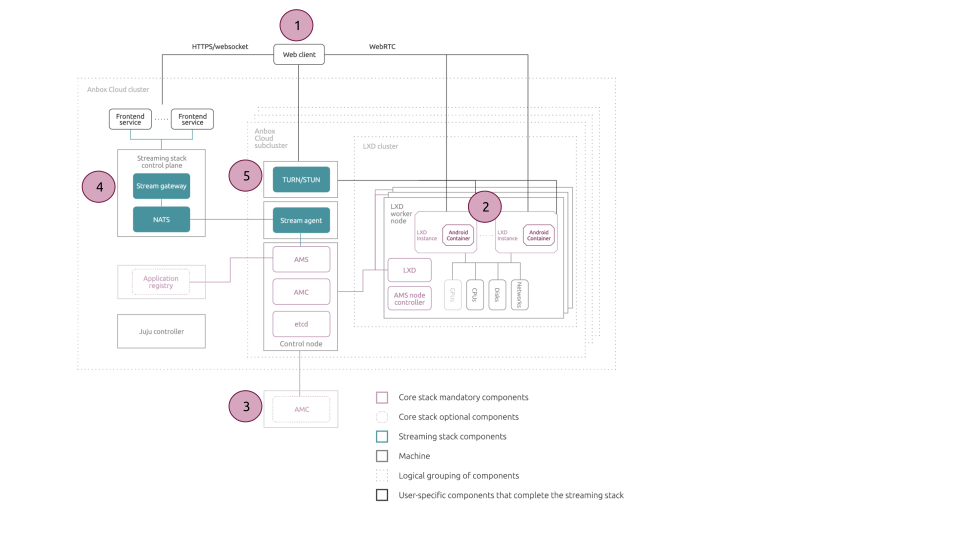
1 - Secure the web client
Use the Anbox Cloud dashboard as your default stream client. If you want to use a custom client, ensure you have set it up securely as described in the Set up a stream client tutorial.
2 - Harden instances
Expose only the ports and services that your deployment requires. See Network ports for the ports exposed externally by default. Before exposing an additional port, consider whether the communication can be routed internally instead.
Avoid exposing service endpoints directly over the internet; use a proxy instead. When an instance needs to communicate with a service, design your deployment to allow the instance to reach out to the control plane rather than exposing an endpoint.
Keep automatic security updates enabled:
application.auto_update(default:true): when enabled, AMS automatically bootstraps a new application version whenever the base image is updated, ensuring image security patches flow through to your applications.instance.security_updates(default:true): when enabled, the latest Ubuntu security patches are applied at instance creation. Disabling it leaves new instances exposed to known vulnerabilities.
See AMS configuration.
Keep TLS pinning enabled to ensure that instances connect to the intended stream agent and to protect the signaling channel from on-path attacks. For charmed deployments, disable TLS pinning only when instances connect to the stream agent through a load balancer. Configure TLS pinning using the
tls_use_pinningcharm option. For appliance deployments, TLS pinning must remain enabled. No manual configuration is required.Monitor resources used by instances regularly to detect resource exhaustion that could affect service availability. See Monitor Anbox Cloud for detailed steps.
3 - Protect AMC credentials
Restrict access to and securely back up the following directories on the machine running the Anbox Management Client (AMC). They contain the TLS client certificate and key used to authenticate against the AMS API. Losing these credentials locks you out of the AMS API; if they are compromised, an attacker gains authenticated access to AMS.
$HOME/snap/amc/current/client$HOME/snap/anbox-cloud-appliance/current/client
4 - Secure the stream gateway
Expose endpoints only when required. When doing so, limit API exposure by using a reverse proxy or a web application firewall. The appliance has a built-in reverse proxy. For the charmed deployment, configure a reverse proxy for publicly exposed stream gateway endpoints.
These are the endpoints that you may require to expose for specific purposes:
^/1.0/sessions/[a-zA-Z0-9-_:]+/sockets/(slave|adb)[/]?$— This endpoint is required for streaming^/1.0/sessions/[a-zA-Z0-9-_:]+/connect$— This endpoint is required for seamless ADB support
Adjust the API rate limiting for the gateway API endpoint to reduce the risk of resource exhaustion caused by excessive requests.
Rotate authentication tokens used for the gateway API on a regular basis rather than waiting for them to expire. Regular rotation limits the period during which a leaked token remains usable. Anbox Cloud does not currently provide a built-in token rotation mechanism. If you use a custom stream client, replace its token by deleting the existing account, creating a new account, and updating the client to use the new token.
For appliance deployments:
sudo anbox-cloud-appliance.gateway account delete <user_name>
sudo anbox-cloud-appliance.gateway account create <user_name> --expiration <expiration_time>
For charmed deployments, create a new authentication token using the create-auth-token action.
For complete token-management instructions, refer to create a token.
When sharing a session, do not create shares with no expiry. Create a share with a defined validity period and extend it only if needed. A share with no expiry remains accessible until it is explicitly removed.
5 - Minimize TURN/STUN exposure
Disable TURN if it is not required. An unnecessary TURN service exposes an additional network endpoint to the internet. TURN is only needed for clients with restrictive firewall or NAT configurations. If your users do not need it, disable it in the coturn charm configuration by setting both enable_udp_relay and enable_tcp_relay to false.
Use the TURN/STUN server bundled with your Anbox Cloud deployment rather than a publicly hosted external server. An external STUN or TURN service adds an additional publicly reachable endpoint to your attack surface.
If you require an external STUN server, configure it via the Anbox Stream Agent charm configuration. Note that externally hosted TURN is not supported.