Stream controls bar
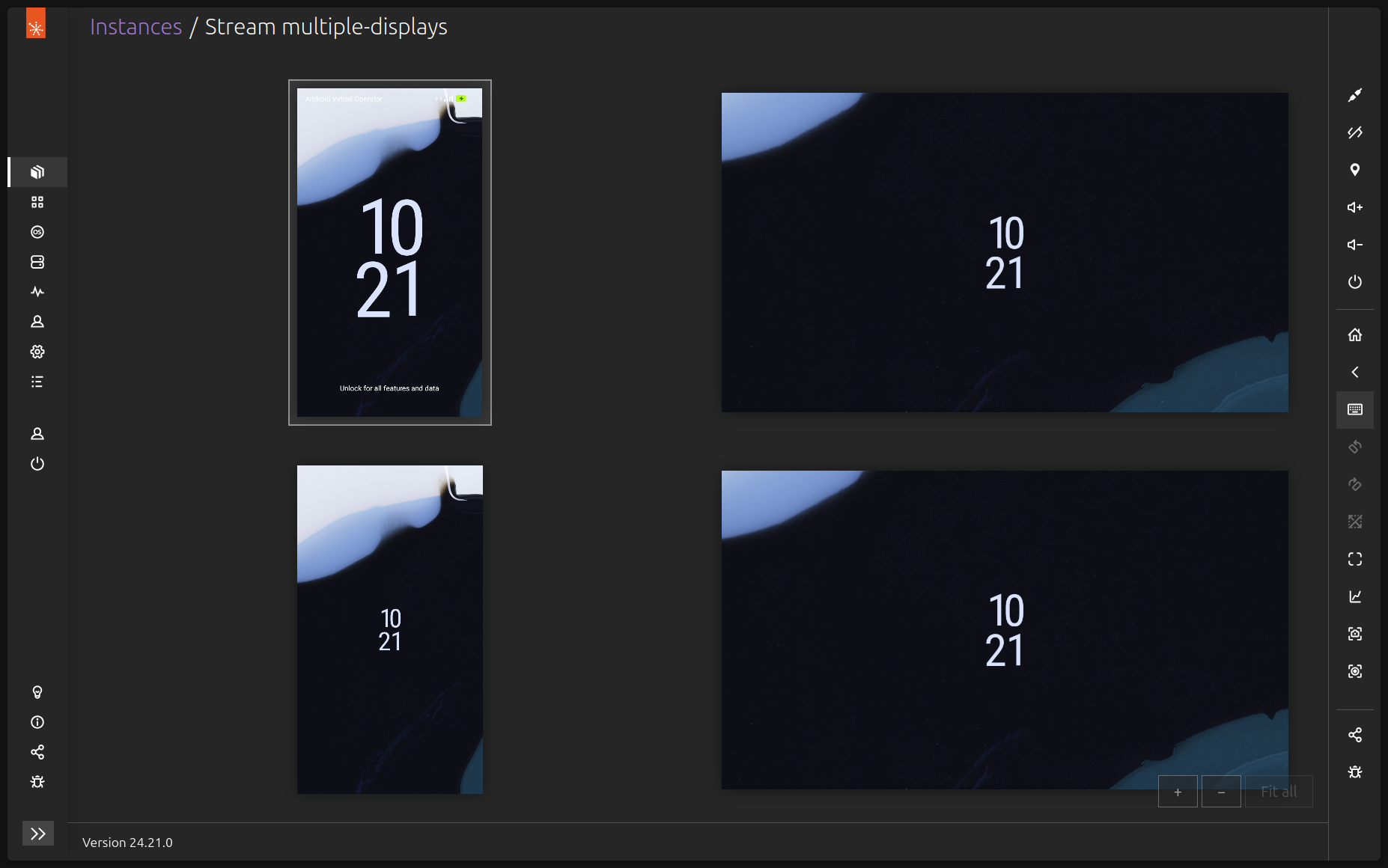
The Stream controls bar appears on the right side of the Stream page. The controls are grouped into three sections based on whether they affect the whole instance, an individual display, or the streaming session.
Instance and Android controls
These controls affect the instance or Android as a whole rather than a specific display. In multi-display instances, their behavior does not depend on which display is focused.
Control |
Button |
Shortcut |
Description |
|---|---|---|---|
Connect ADB |
|
|
Generates a pre-signed URL that you can use to connect to the running instance with Android Debug Bridge (ADB). |
Developer tools |
|
|
Opens the developer tools panel, where you can access a terminal and view logs for the running instance. |
Set Location |
|
|
Sets the geographic location (GPS coordinates) of the Android device. |
Volume up |
|
|
Increases the volume, equivalent to pressing the volume-up button on an Android device. |
Volume down |
|
|
Decreases the volume, equivalent to pressing the volume-down button on an Android device. |
Power |
|
|
Puts the Android device to sleep or wakes it, equivalent to a short press of the power button. |


Display-specific controls
These controls affect an individual display. In a single-display stream, they apply to the only display. In a multi-display stream, supported controls apply to the focused display. You must focus a display before using them.
Control |
Button |
Shortcut |
Description |
Multi-display behavior |
|---|---|---|---|---|
Home |
|
|
Returns the display to the Android home screen, equivalent to pressing the Home button on an Android device. |
Applies to the focused display. |
Back |
|
|
Performs the Android Back action, equivalent to pressing the Back button on an Android device. |
Applies to the focused display. |
Release / Capture keyboard |
|
|
Controls whether keyboard input is sent to the display or handled by the browser. |
When keyboard capture is enabled, keyboard input is sent to the focused display. |
Rotate left |
|
|
Rotates the display 90 degrees to the left. |
Not available for multi-display instances. |
Rotate right |
|
|
Rotates the display 90 degrees to the right. |
Not available for multi-display instances. |
Enable / Disable stream resize |
|
|
Enables stream resizing. Adjust the resize frame to the desired dimensions, then click the control again to apply the new size. The resized dimensions apply only to the current streaming session. Starting a new stream restores the default size. |
Not available for multi-display instances. |
Full screen |
|
|
Shows the display in full-screen mode. Press the |
Shows the focused display in full-screen mode. |
Show statistics |
|
|
Opens a panel with real-time streaming statistics for monitoring performance and troubleshooting streaming issues. |
Shows statistics for the focused display. |
Take a screenshot |
|
|
Captures an image of the display and downloads it to your system. |
Captures the focused display. |
Start / Stop screen recording |
|
|
Starts recording the display. Click the control again to stop the recording and download the video to your system. |
Records the display that is focused when recording starts. Changing focus does not switch the recording to another display. |


Session utilities
These actions support the streaming session rather than interaction with the instance or its displays. Use them to share the stream or download a bug report for troubleshooting.
Control |
Button |
Shortcut |
Description |
|---|---|---|---|
Set up sharing |
|
|
Creates a temporary link for another user to join the streaming session. Only one user can be connected at a time. When another user joins, the currently connected user is disconnected. |
Download bug report |
|
|
Collects relevant logs and session data in a bug report that you can use to troubleshoot issues related to the streaming session. |

