How to deploy on Sunbeam

Approximate duration: up to 60min
May vary depending on internet download speed.
This guide goes through the steps for setting up Sunbeam and deploying Charmed PostgreSQL.
Prerequisites
A physical or virtual machine running Ubuntu 24.04+
Hardware requirements depend on planned deployment size.
Recommended: 8 CPU cores, 32GB RAM, 100GB of storage
Minimum: See the requirements listed in the Sunbeam documentation
Install and bootstrap Sunbeam
Follow the official OpenStack installation guide.
Pay attention to the Caution and Note sections - the /etc/hosts will require a manual
Enable OpenStack images auto-sync
Follow the official Images Sync guide to enable auto-sync and wait for the image 24.04 to be downloaded.
Set up Juju inside an OpenStack bastion
Follow the OpenStack guide Manage workloads with Juju from the beginning, and stop after the section “Create a Juju controller”.
To summarise, the relevant sections are:
“Set up the bastion”
“Install and configure the Juju client”
“Create a Juju controller”
Deploy Charmed PostgreSQL
Add a model if you don’t have one already, and deploy a PostgreSQL cluster. Use the -n flag to specify number of units.
user@host:~$ user@host:~$ user@host:~$ Model Controller Cloud/Region Version SLA Timestamp
<model-name> my-controller sunbeam/RegionOne 3.6.1 unsupported 19:42:44Z
App Version Status Scale Charm Channel Rev Exposed Message
postgresql 16.9 active 3 postgresql 16/stable 843 no
Unit Workload Agent Machine Public address Ports Message
postgresql/0* active idle 0 192.168.122.211 5432/tcp Primary
postgresql/1 active idle 1 192.168.122.226 5432/tcp
postgresql/2 active idle 2 192.168.122.14 5432/tcp
Machine State Address Inst id Base AZ Message
0 started 192.168.122.211 3f0a331c-bc08-4bae-af22-44087a7b74d6 ubuntu@24.04 nova ACTIVE
1 started 192.168.122.226 e6e908f8-0da1-4440-9bbd-9f1c1bc780df ubuntu@24.04 nova ACTIVE
2 started 192.168.122.14 6f9ad7cd-2a9d-435e-a6d8-3e39bf2218cd ubuntu@24.04 nova ACTIVE
Access the OpenStack dashboard (optional)
Follow the official guide: Accessing the OpenStack dashboard.
When using a Multipass VM, you may need to manually route OpenStack IPs.
For example:
sudo ip route add 10.10.10.0/24 via 10.76.203.210
where 10.76.203.210 is the IP of the Multipass VM and 10.10.10.0 is the network returned by sunbeam dashboard-url.
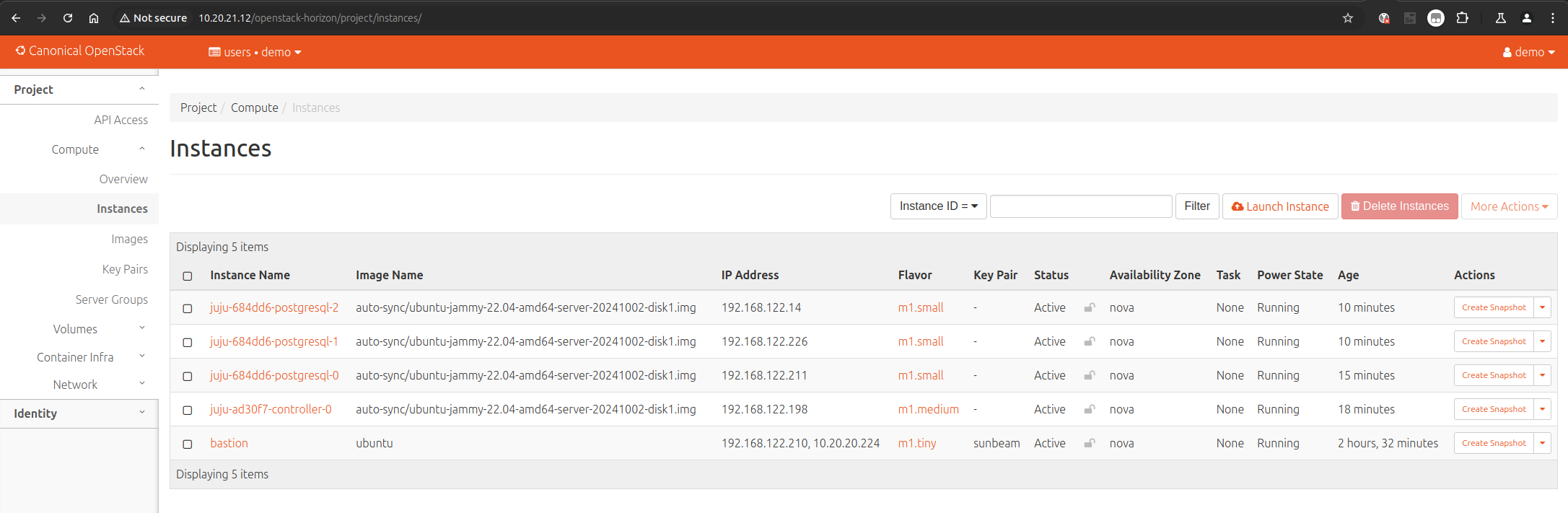
The image below is an example of the OpenStack dashboard view (bastion + juju controller + 3 postgresql nodes):