
How to deploy on MAAS

This guide aims to provide a quick start to deploying Charmed PostgreSQL on MAAS.
Prerequisites
A physical or virtual machine running Ubuntu 24.04+
Juju 3.6+ installed via snap
Set up your environment
To try things out in a simple test environment with Multipass, see:
To set up a local installation on a single machine, follow:
Configure MAAS
Open the URL http://<MAAS_IP>:5240/MAAS/ in your web browser, and log in with the default credentials:
username=
adminpassword=
admin.
Complete the additional MAAS configuration in the welcome screen.
Wait for image downloads to complete on http://<MAAS_IP>:5240/MAAS/r/images
/MAAS/r/images
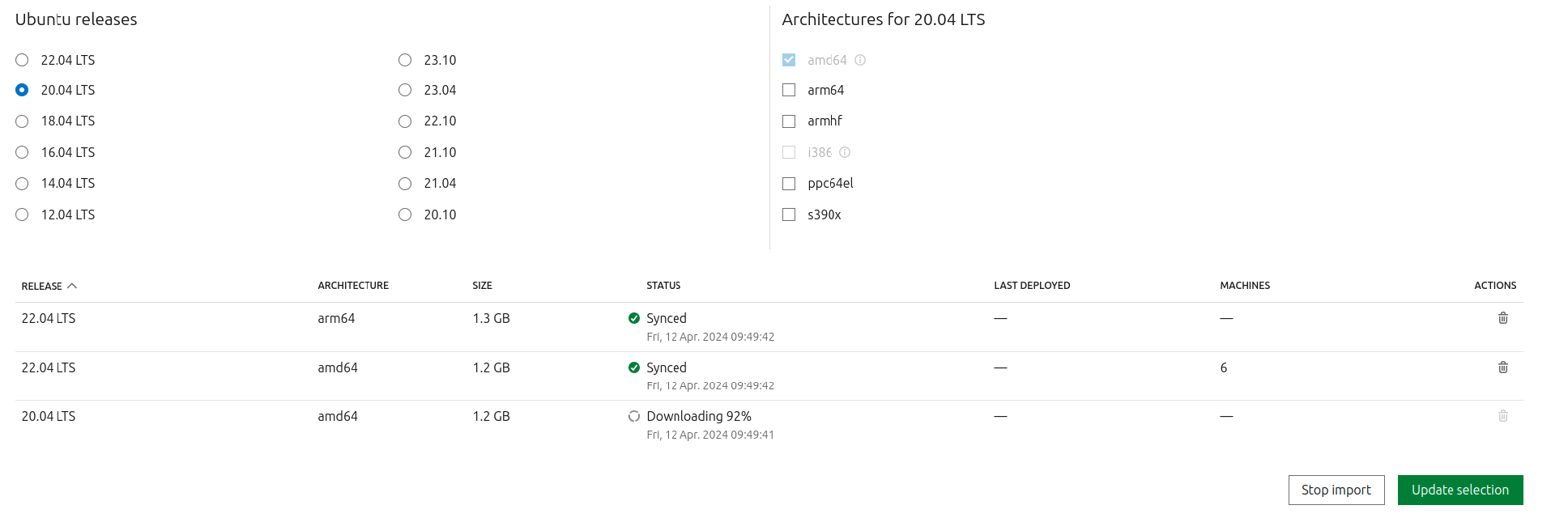
Make sure you are downloading 24.04 images as well.
The LXD machine will be up and running after the images downloading and sync is completed.
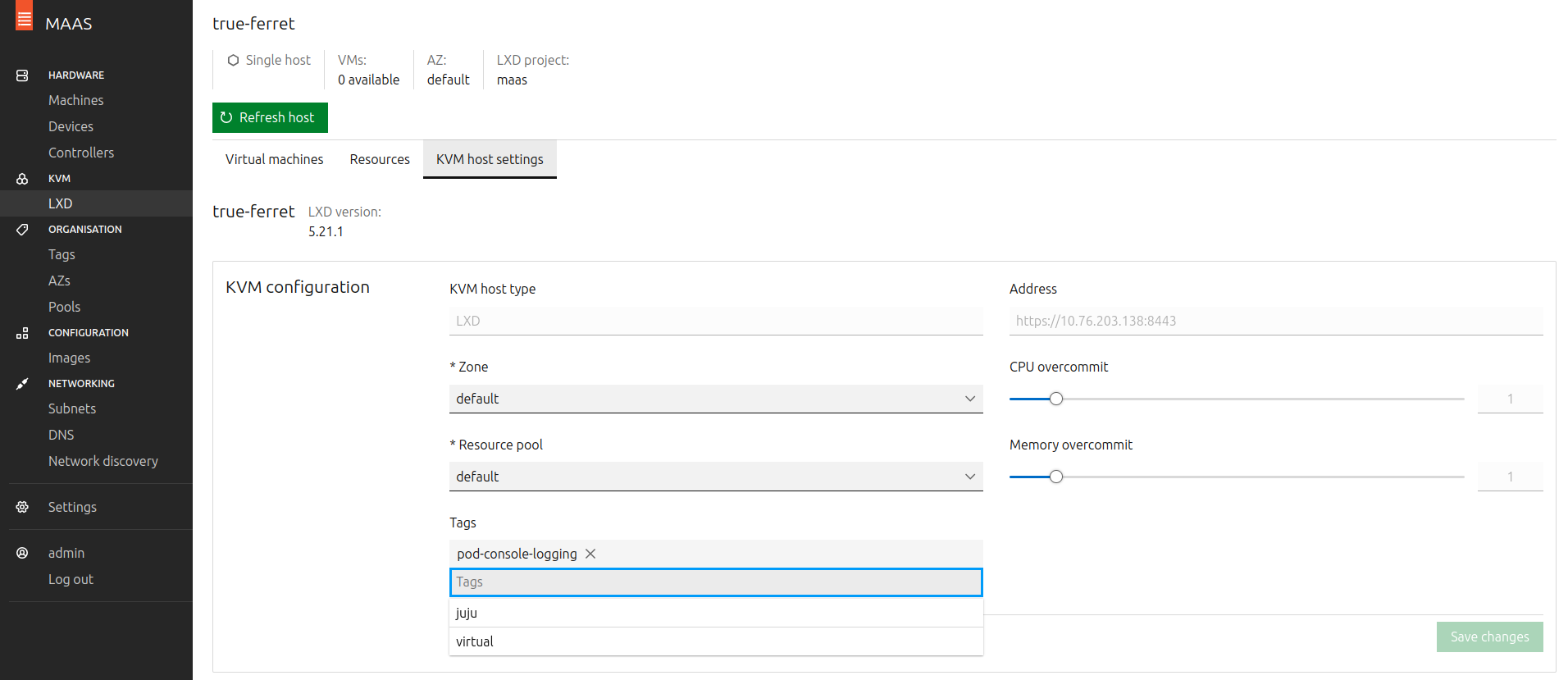
Navigate to http://<MASS_IP>:5240/MAAS/r/tags and create a tag with tag-name=juju. Assign it to the LXD machine.
/MAAS/r/tags
If you are on Multipass, dump the MAAS admin user API key to add as Juju credentials later:
user@host:~$ Make sure to enable DHCP service inside the MAAS VM only.
MAAS uses DHCP to boot and install new machines. You must enable DHCP manually if you see this banner on MAAS pages:

Use the internal VM network fabric-1 on 10.10.10.0/24 and choose a range (e.g. 10.10.10.100-10.10.10.120). Check the official MAAS manual for more information about enabling DHCP.
Register MAAS with Juju
Add MAAS cloud and credentials to Juju.
These commands are interactive, so the following code block shows a sample output. Make sure to enter your own information when prompted by Juju.
user@host:~$ > Since Juju 2 is being run for the first time, downloading latest cloud information. Fetching latest public cloud list... Your list of public clouds is up to date, see `juju clouds`. Cloud Types
> maas
> manual
> openstack
> oracle
> vsphere
>
> Select cloud type: maas
> Enter a name for your maas cloud: maas-cloud
> Enter the API endpoint url: http://<MAAS_IP>:5240/MAAS
> Cloud "maas-cloud"
user@host:~$ > ...
> Enter credential name: maas-credentials
>
> Regions
> default
> Select region [any region, credential is not region specific]: default
> ...
> Using auth-type "oauth1".
> Enter maas-oauth: $(paste the MAAS Keys copied from the output above or from http://YOUR_MAAS_IP:5240/MAAS/r/account/prefs/api-keys )
> Credential "maas-credentials" added locally for cloud "maas-cloud".
Bootstrap a Juju controller. Add the flags --credential if you registered several MAAS credentials, and --debug if you want to see bootstrap details:
user@host:~$ Deploy Charmed PostgreSQL on MAAS
Create a Juju model:
user@host:~$ Deploy PostgreSQL:
user@host:~$ user@host:~$ Model Controller Cloud/Region Version SLA Timestamp
<model-name> maas-controller maas-cloud/default 3.1.8 unsupported 12:50:26+02:00
App Version Status Scale Charm Channel Rev Exposed Message
postgresql 16.9 active 1 postgresql 16/stable 843 no Primary
Unit Workload Agent Machine Public address Ports Message
postgresql/0* active idle 0 10.10.10.5 5432/tcp Primary
Machine State Address Inst id Base AZ Message
0 started 10.10.10.5 wanted-dassie ubuntu@22.04 default Deployed
Clean up the environment
Always clean cloud resources that are no longer necessary; they could be costly!
Multipass
If you are using Multipass, you can delete all your data by removing the VM entirely. See the documentation for multipass delete.
Local deployment
See all controllers in your machine with
user@host:~$ Controller Model User Access Cloud/Region Models Nodes HA Version
<controller-name> <model-name> admin superuser <cloud-name>/<region-name> 1 1 none 3.6.1
The following command will destroy the Juju controller and remove the cloud instance - meaning all your data will be permanently removed:
user@host:~$