
Add an icon to Charmhub
Creating a custom icon for your charm is a great way to make it stand out on Charmhub. This guide works through creating, validating, and adding an icon to your charm’s Charmhub page.
Install prerequisites
You can create the icon with any vector graphics editor, but this guide works through the process with Inkscape. If you’re following along step by step, open a terminal and install the Inkscape snap:
snap install inkscape
Next, right-click on the following link to save the icon template to your machine. Leave the file name
as icon.svg.

Draw the icon in Inkscape
Open Inkscape and load the icon template you downloaded in the previous step.
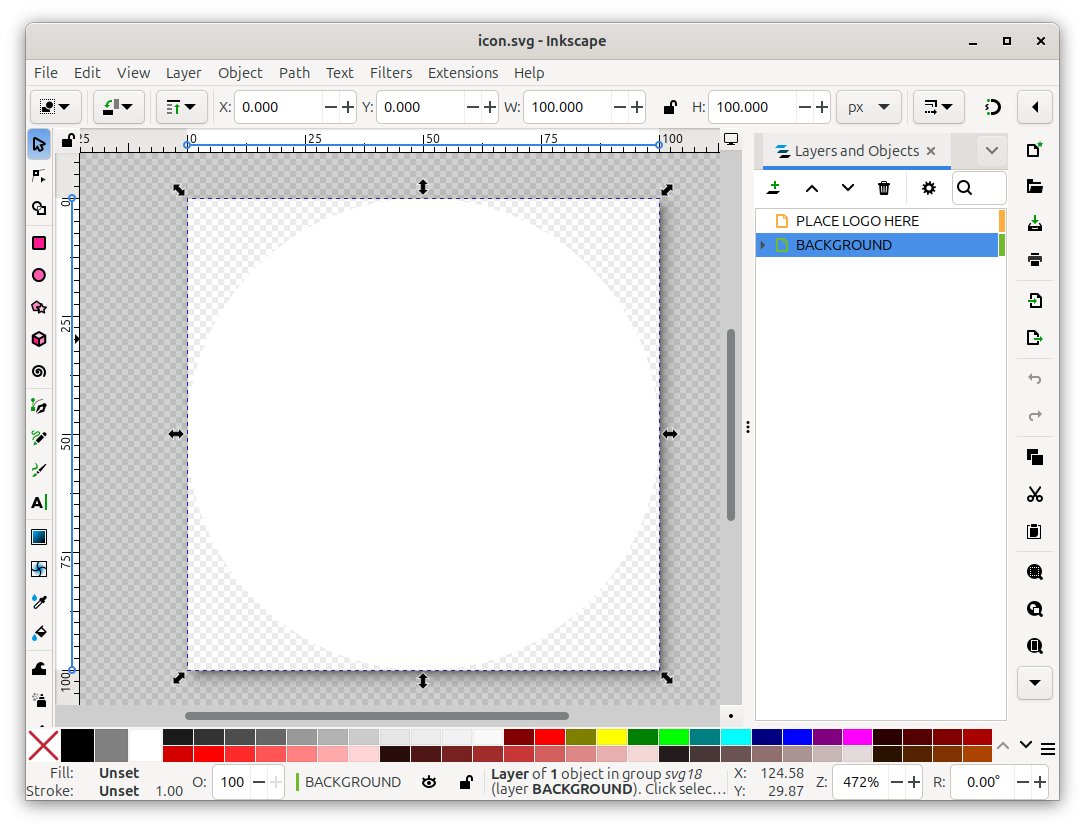
To change the icon’s background color, start by pressing Ctrl + Shift + L and clicking on BACKGROUND in the resulting tab.
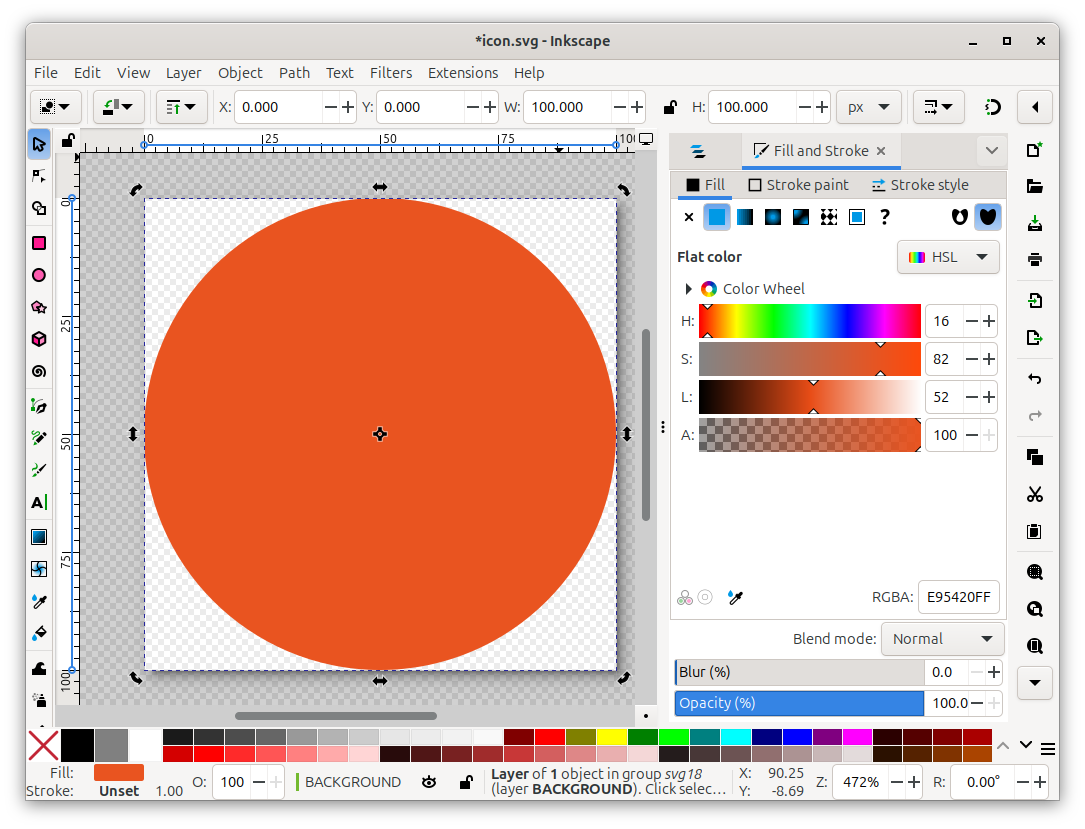
With the background layer selected, press Ctrl + Shift + F to open the Fill and Stroke interface. You can then select a color for the background.
Next, go back to the layer selection window and select the PLACE LOGO HERE layer. If you already have a vector image icon, drag it into this layer. If you have a bitmap image, you’ll need to convert it into a vector file first.
If you don’t have an existing logo, you can use the drawing tools in Inkscape to create one from scratch.
When you’re done editing the logo, rename this layer to something more meaningful, like LOGO or ICON.
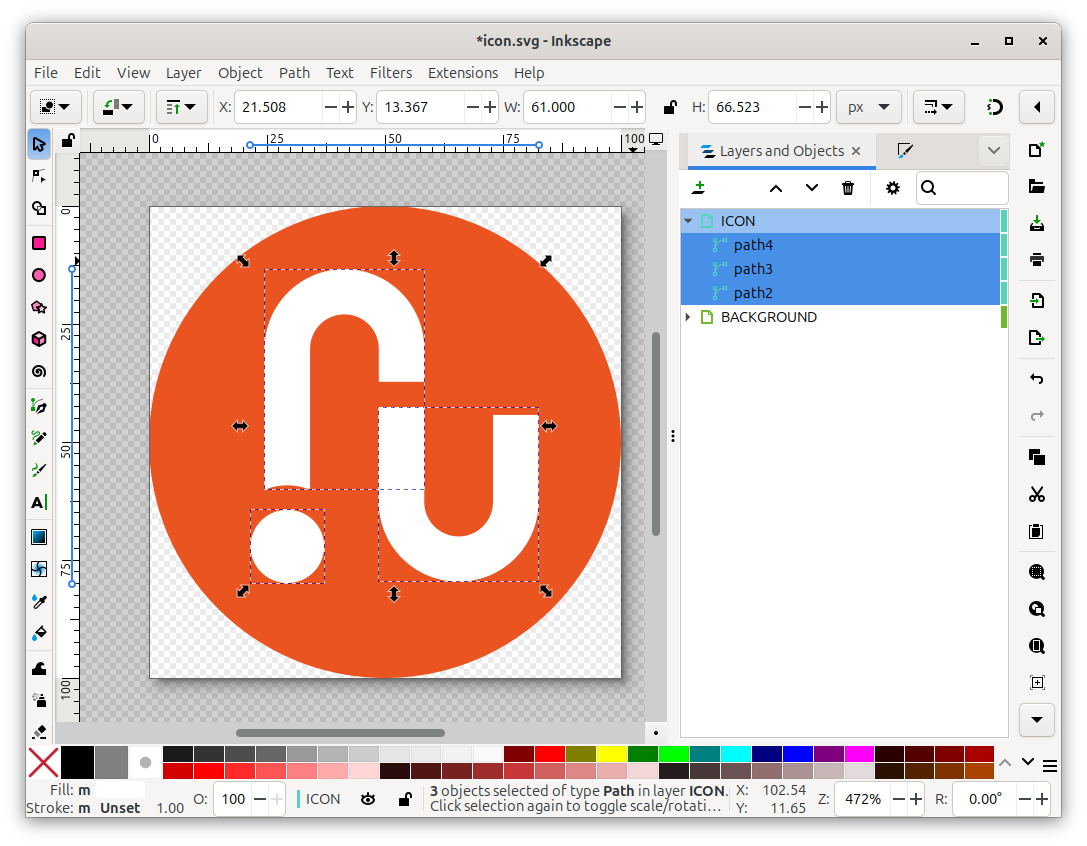
Once you’re happy with your icon, press Ctrl + Shift + S and save
the file as icon.svg in the directory containing your charm’s project file.
Validate the icon
Go to the Charmhub icon validator and upload your icon to check for any issues with its file type or dimensions. If you used the provided template, this should pass without any issues.
To fix issues related to the icon’s size, go back into Inkscape, press Ctrl + Shift + D, and set the height and width to 100 pixels.
Pack the icon in the charm
For the icon to be displayed on Charmhub, it needs to be packed into the final charm
artifact. Ensure that the icon.svg file is present in the directory containing your
charm’s project file.
If your charm’s main part uses the Charm plugin, the icon will be packed in the final charm by default.
For every other plugin, you need to explicitly add the icon.svg file to the charm
by adding a new part using the Dump plugin to your project file.
parts:
  icon:
    plugin: dump
    source: .
    stage:
      - icon.svg
The next time you publish the charm to its default track’s
stable channel, the icon will be displayed on Charmhub. Charmhub only updates the
charm’s metadata on releases to the stable channel.
If you aren’t ready for a stable release, you can add the icon by releasing and
then rolling back a revision. However, it’s generally recommended you wait until
the charm is ready for a true stable release.